
10 video credits a month, free.
Go Premium for 20, no watermark, your own look, and two more kinds of reel.
The plans
Free
No card needed$0 forever
- 10 video credits every month
- House themes
- Settings card reels
- Summary card reels
- Color grading reels
- Before & After showcases
- Not on Free: Watermark-free exports
- Not on Free: Step-by-step reels
- Not on Free: Location stories
Every account starts here.
Premium
$12 /month
- 20 video credits every month
- Customize it, save your own themes and templates
- Settings card reels
- Summary card reels
- Color grading reels
- Before & After showcases
- Watermark-free exports
- Step-by-step reels
- Location stories
Monthly, cancel anytime. You’ll see the total before you pay.
Prices are in US dollars; sales tax is added where it applies.
How video credits work
1 render, 1 credit
Most videos and carousels you render use one video credit, a re-render too.
Some formats: 2 credits
On Premium, step-by-step reels and location stories each use 2 video credits.
Video credit packs
For Premium (sign up to upgrade, in a new tab) accounts. Pack credits are used after your monthly ones and never expire; monthly credits don’t roll over.
20 video credits
$0.50 a credit
$10 one-time
40 video credits
$0.40 a credit
$16 one-time
Compare the plans
What you’ll make
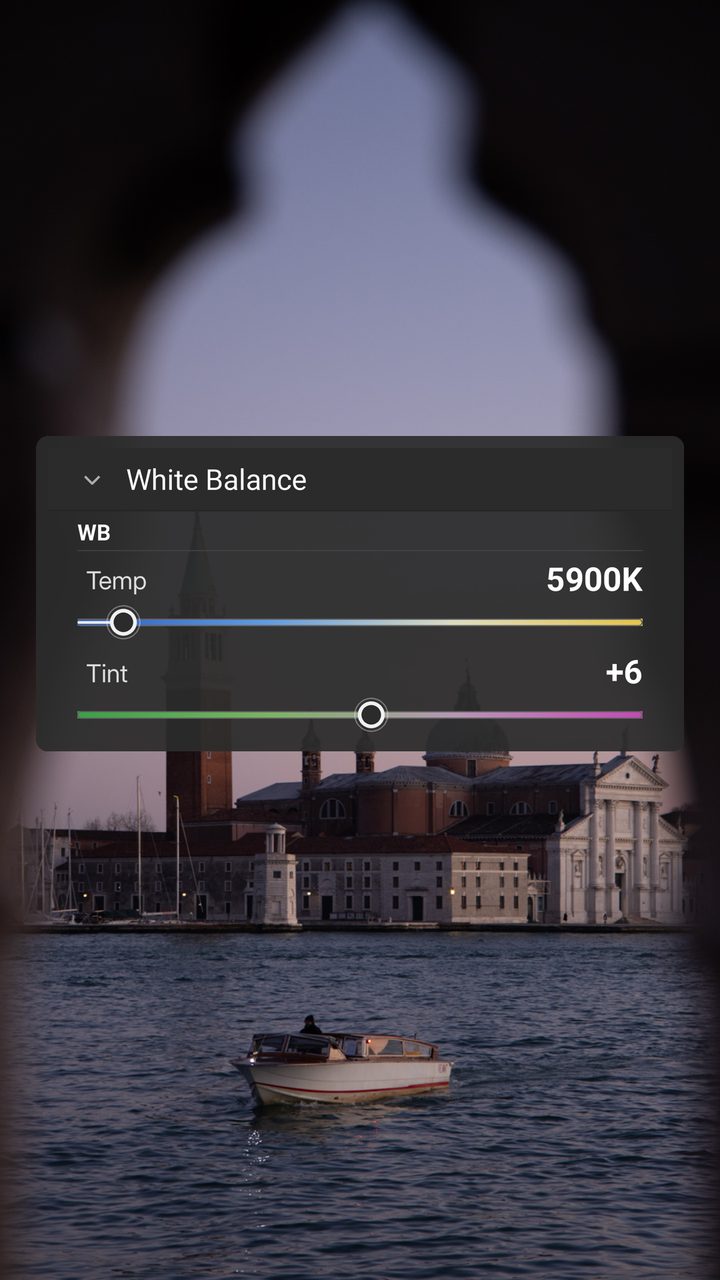
Share the settings behind your edit
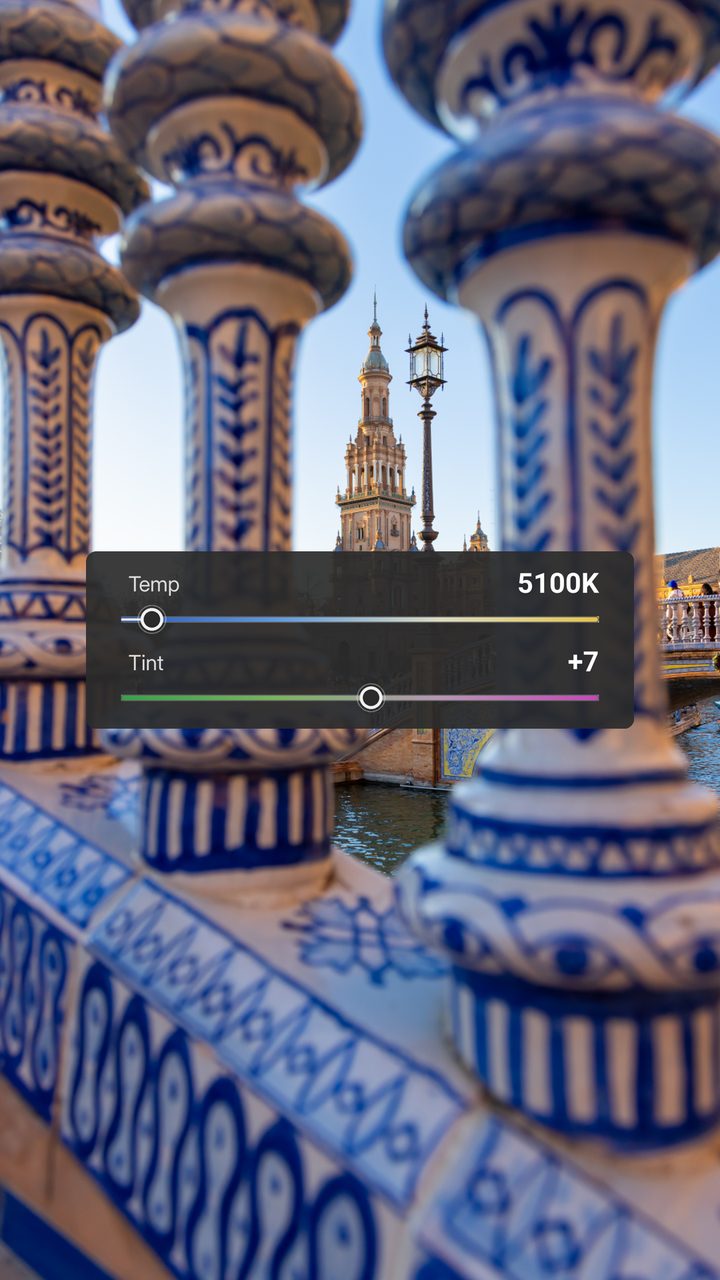
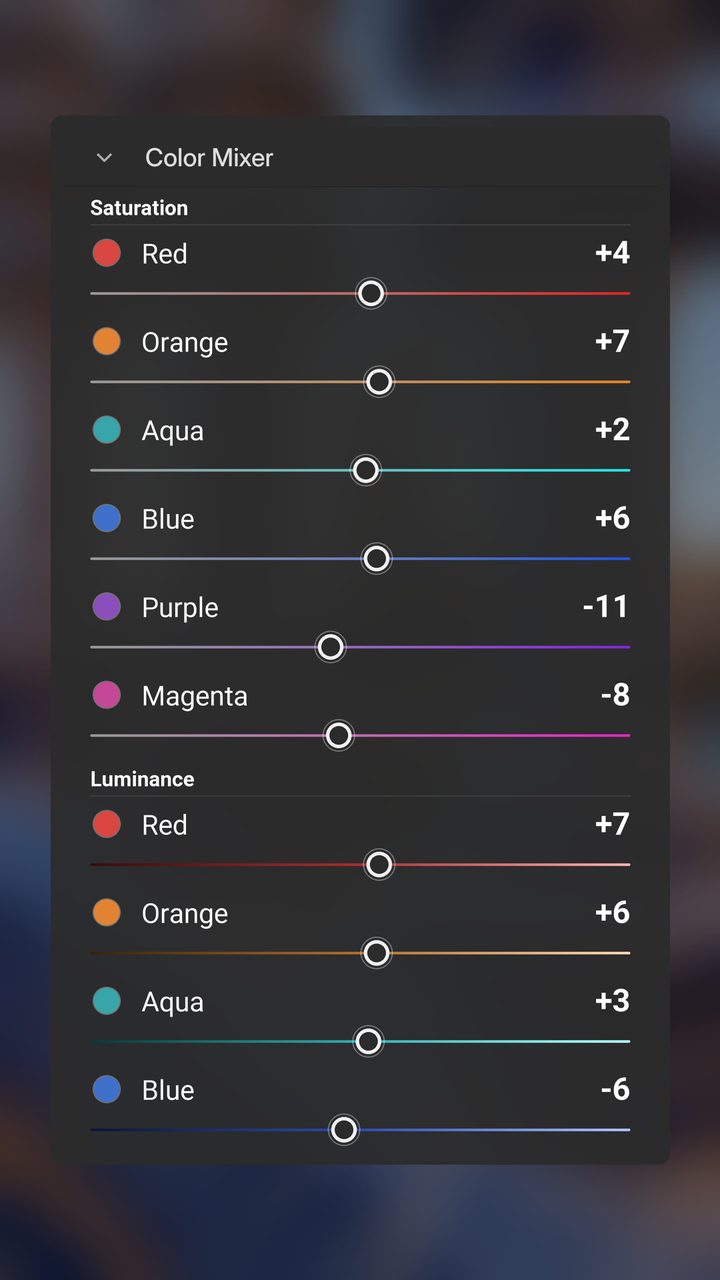
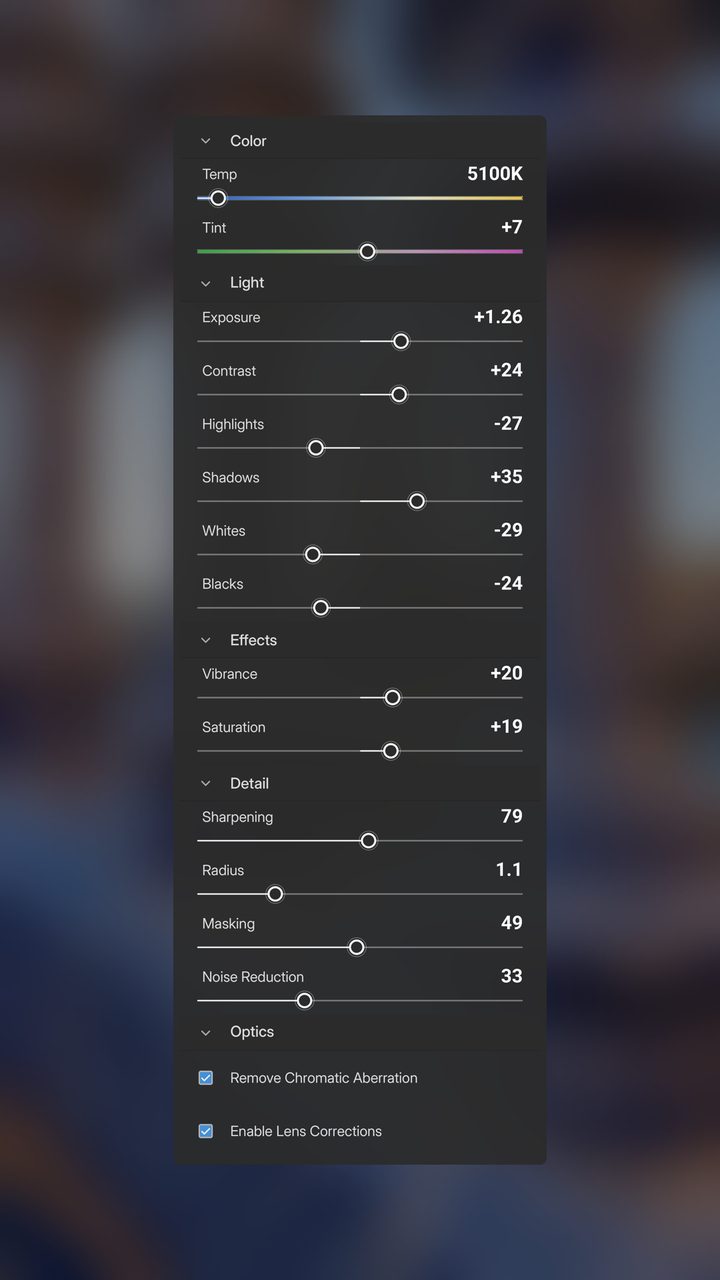
- The settings you changed, one step at a time, with their real values
- Read from the file Lightroom saves, never guessed
- Ends on your exact export, as a reel and a carousel
You’ll need your RAW, the .xmp settings file you save from Lightroom, and your final export. How to export them

Showcase the before and after of your photos
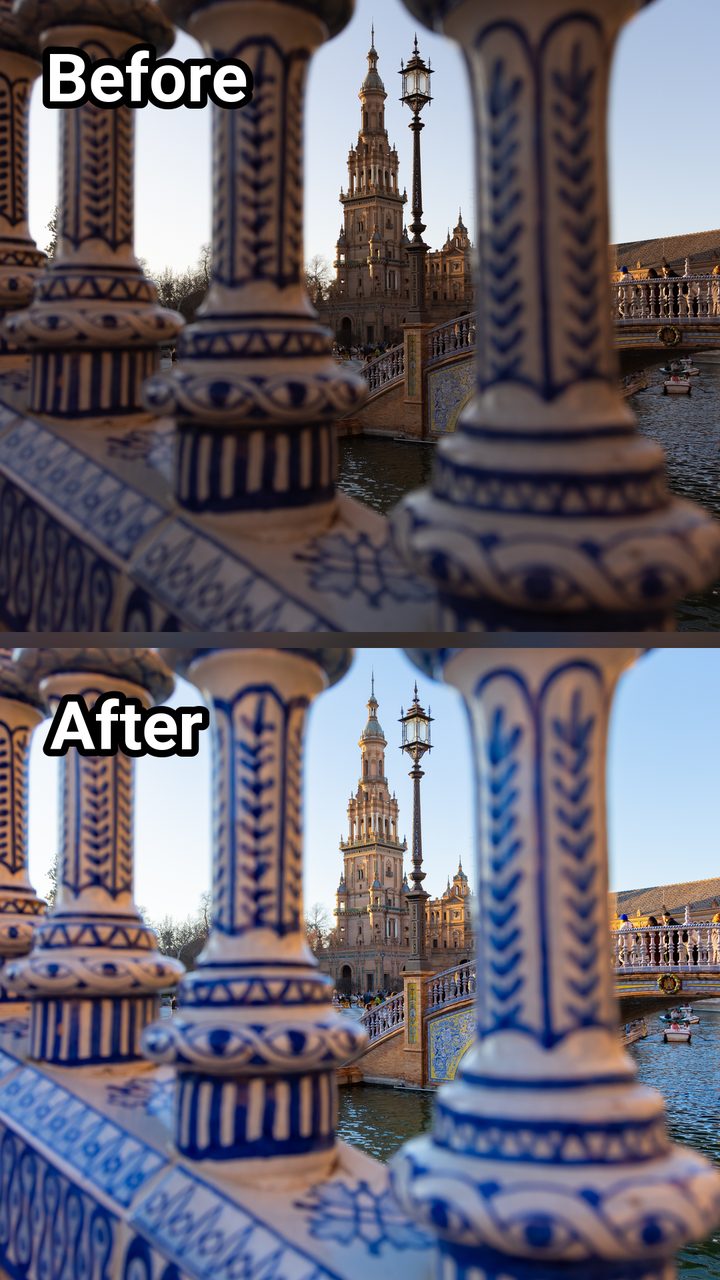
- The original and the edit in one frame
- Stacked, or split down the middle, across, or on the diagonal
- Your own words on each photo
You’ll need two finished images per edit, the before and the after, as JPG, PNG, TIFF, or HEIC. No RAW or settings file needed.
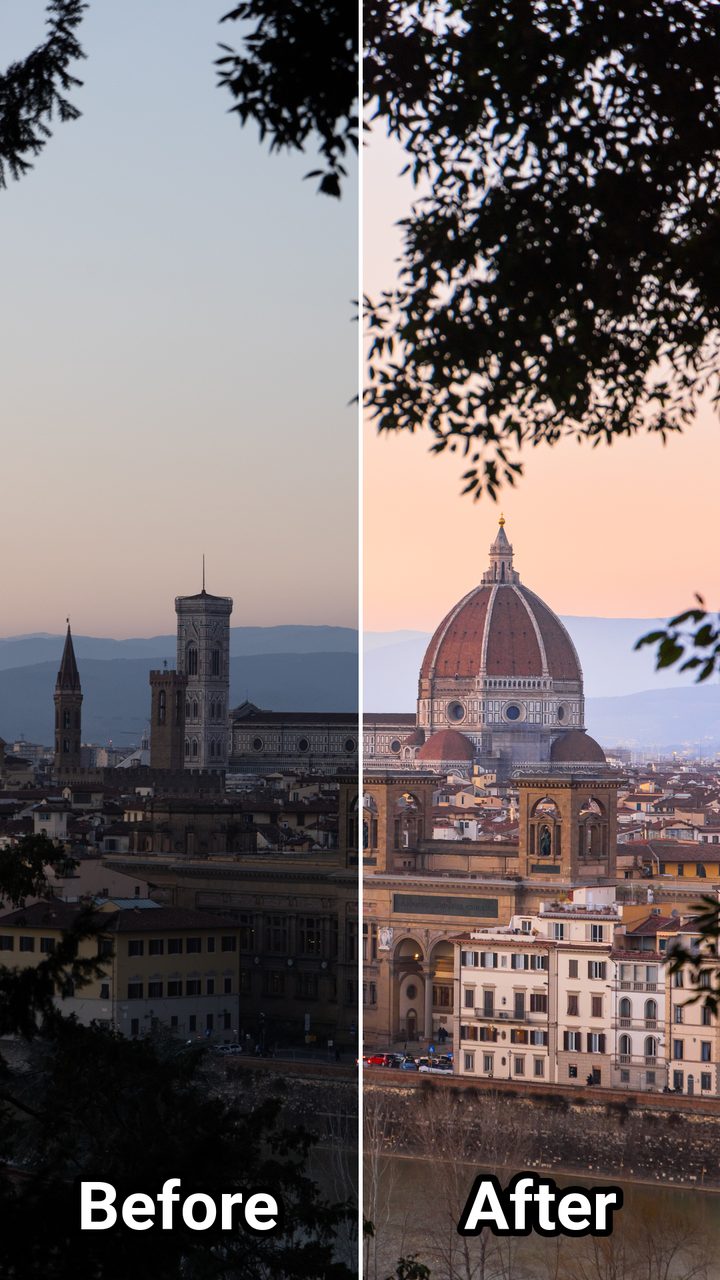
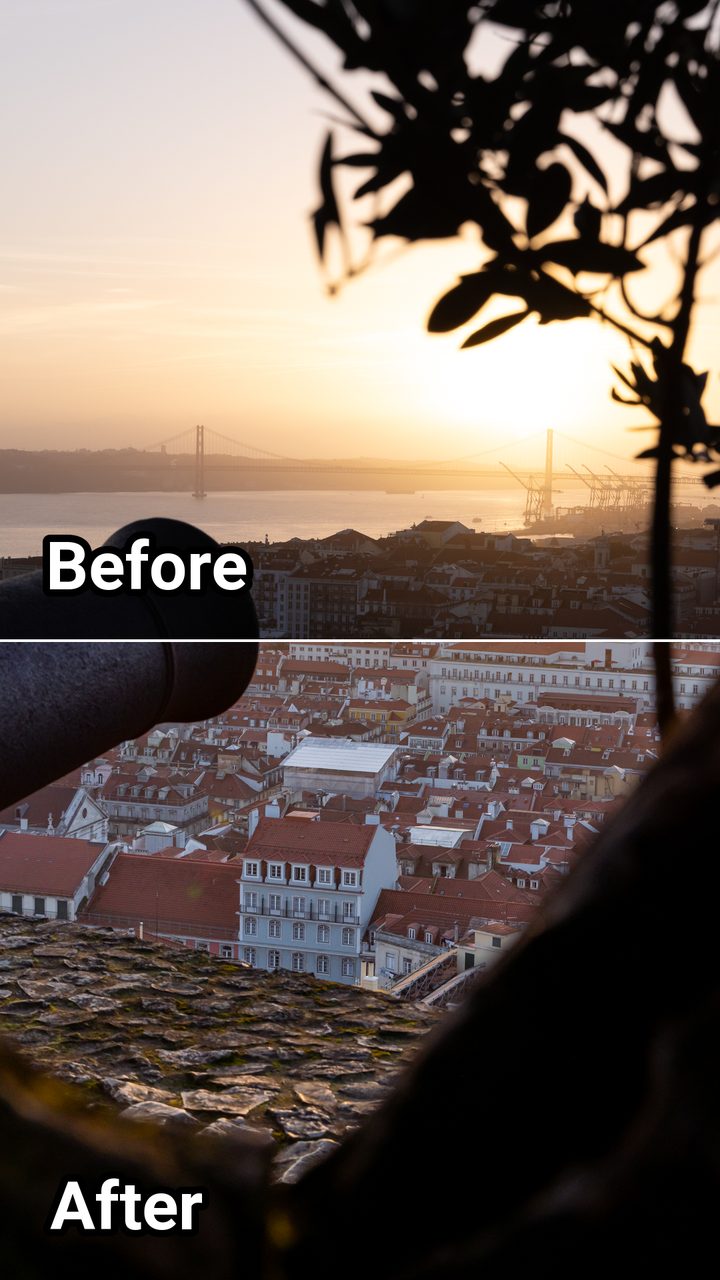
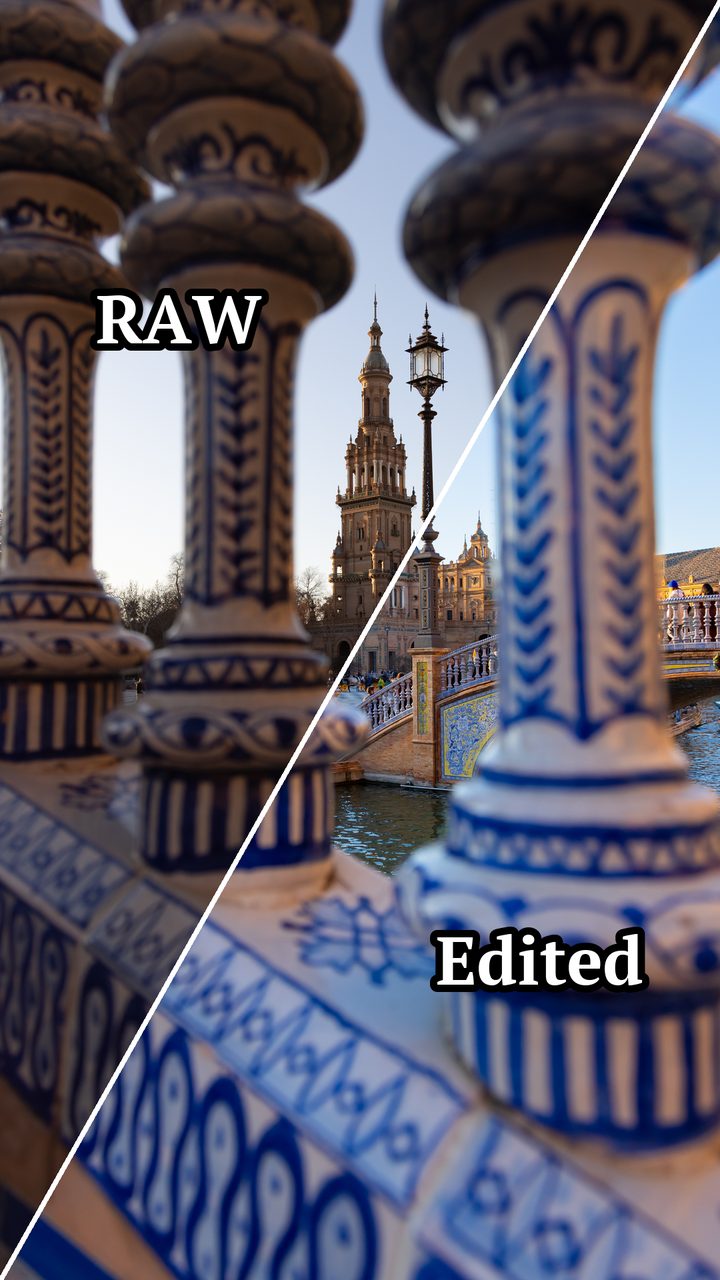
1 of 4: Stacked
Tell the story behind the shot
- A satellite view zooms in on where you took the photo
- A marker, the place name, and, if you like, a line of your story
You’ll need just your finished photos, as JPG, PNG, TIFF, or HEIC. No RAW or settings file needed.
1 of 3: Place names
Included in Premium: sign up to upgrade, in a new tabBefore you start
Plans and billing
What’s a step-by-step reel?
Instead of a before-and-after, it shows your edit building up one step at a time. It’s a Premium feature.
Does rendering again use more video credits?
Yes. Every render uses video credits, so a change and a re-render counts again, the same as the first. Starting a project is free, and a project you never render is removed automatically after a while and never counts.
How do I cancel, and can I get a refund?
Cancel from your dashboard, or by emailing support. A cancelled plan runs to the end of the month you’ve paid for, with no further charges, and your account goes back to Free: you can still sign in and download your projects until they’re deleted automatically, 30 days after each was created. We refund your first payment if you ask within 7 days of it and have used no more than 3 video credits since, and whenever a problem on our side stopped you using the service. A pack of extra video credits is refundable within 14 days of buying it, as long as none of its credits has been used. The Refund Policy has the details.
Is tax included?
Prices are in US dollars. Sales tax is added at checkout where it applies, and shown before you pay.
What it’s made from
Do I have to record my screen, or know how to edit video?
Neither. Nothing is recorded or re-enacted: Lightroom can save your settings in a small file beside the photo, and Edit Story builds each step of the reel from the values in it. You upload the files and choose a style; the video and the carousel are made for you, ready to post.
What do I need to upload?
Three things from Lightroom: your original RAW, the small .xmp file with your settings that you save beside it (Ctrl+S or ⌘S in Lightroom Classic), plus the .acr file if there is one, and your finished JPG export. A DNG can carry the settings inside itself, and a JPG original works too. The Help page shows exactly where to find each one. A Before & After showcase or a location story needs only your finished photos.
Which version of Lightroom do I need?
Lightroom Classic, or Lightroom (the cloud-based app) on a Windows or Mac computer, or in a browser. Both save the settings file Edit Story reads, and the Help page walks through the export for each.
Edit on your phone? Your edits sync to Lightroom on your computer. Open the photo there, export, and the final JPG can still come from the phone.
How accurate are the settings?
They’re read straight from the settings file Lightroom saves, not guessed from the picture, and the last frame is your own final export. A few things, like AI Denoise, are named in the steps rather than recreated, and a mask is drawn where Lightroom drew it only when its shape is in the file. Color Grading is always the last step, shown on your own export, so the grade looks exactly as it does in Lightroom.
Does it work with presets?
Yes. A preset moves the same sliders you would move by hand, and Lightroom writes the result into the same settings file, so the reel shows the sliders the preset moved, with the values they ended on, along with anything you adjusted afterwards. If you sell presets, it is the post that shows what they do.
What you get
Doesn’t Lightroom already do this with Edit Replay?
Edit Replay is a feature of Lightroom’s phone app. It makes a short before-and-after video labeled with the kinds of changes you made, like “Adjust Colors,” in one fixed look, with nothing to customize, and it can only be made and exported from a phone. Photographers who edit in Lightroom Classic or Lightroom on a computer are left out.
Edit Story starts from the files your Lightroom saves on the computer, shows the actual values of your sliders, lets you choose the format, the steps and the look, and makes a matching carousel alongside the reel.
Can I change how it looks, and keep that look?
Yes. Pick the kind of reel, a template (which frames and extras it has), and a house theme with white or black text, then as much or as little as you like: which steps show, in what order and under what name, the background, and on Premium the captions, text style, font, timing, transitions, and layout. On Premium, save the frames as a template and the look as a theme and pick them for your next reel, so the second one takes minutes and matches the first.
What do I get, and in what shape?
An MP4 of the reel and a ZIP of the carousel’s slides as JPGs (or PNGs on Premium), with any moving slide as a short MP4, all 1080 pixels wide and with no camera or GPS data. On Free they carry the Edit Story watermark; on Premium they don’t. The video and the carousel each take the shape you choose: 9:16 for reels and stories, or 4:5, 3:4, 2:3, or 1:1 for the feed.
How long does it take?
A few minutes from upload to download: add your files, check the settings it found, pick a style and render. The render runs on our servers, usually in a minute or two, so you can close the tab and come back. Change something and render again; each render uses one video credit, or two for a step-by-step reel or a location story.
The cost and your photos
What happens when I use all my video credits?
On Premium, you can add more or wait for your credits to come back on your billing date. On Free, your video credits come back on the first of each month. Unused monthly credits don’t roll over; credits from a pack never expire.
What happens to my photos?
They’re used only to make your reel, and projects are deleted automatically after 30 days. We do not train AI with your photos. The files you export carry no camera or GPS data; a location story shows coordinates only if you turn them on.
Have an edit ready?
No card needed
Adobe and Lightroom are either registered trademarks or trademarks of Adobe in the United States and/or other countries. Edit Story is not affiliated with, endorsed by or sponsored by Adobe.